# Adobe
Acrobat, Photoshop, etc.
# Making PDFs accessible in Adobe Acrobat
## Getting started
This write up is not meant to be the official way to make PDFs accessible. We encourage you to visit the [Disabilities Computing Program](https://dcp.ucla.edu/ "UCLA Disabilities Computing Program") (DCP) and check out their workshops held throughout the year. This article will cover two types of PDFs:
1. If you created the PDF from a word processor
2. If you scanned a page into a PDF
## If you created the PDF from a word processor
Regardless what word processor the PDF was generated from, you should have a PDF that has its text recognized, so it can be read through most screen readers. But just in case:
1. Open the PDF in Adobe Acrobat
2. Click on the **Tools** tab or use the **Find your tool here** search box and search for **Accessibility**
3. Click on the **Accessibility** button
4. A menu for Accessibility should open up to the right of the document, click on **Full Check**, then click on the **Start Checking** button in the window that opens
5. Review the Accessibility Checker report that opens to the left of the document
1. Click and expand each heading to review the full report
2. Right clicking on the items will tell you if you need to resolve the issue
6. Save the PDF
## If you scanned a page into a PDF
This use case is if you received a scanned document as a PDF and the text has not been recognized (or OCR).
1. Open the PDF in Adobe Acrobat
2. Click on the **Tools** tab or search for **Action Wizard**
3. Click on the **Action Wizard** button
4. A menu for Action Wizard should open up to the right of the document, click on **Make Accessible**, then click on the **Start** button
1. You may need to correct some issues before the document can be scanned, for example, if the title or author of the document is missing
2. Select the primary language of the document, but set **Output** as “Searchable Image” and **Downsample To** “600dpi”.
3. Leave the **Accessibility Checker Options** as is, then click the **Start checking** button
5. Review the Accessibility Checker report that opens to the left of the document
1. Click and expand each heading to review the full report
2. Right clicking on the items will tell you if you need to resolve the issue
6. Save the PDF
This will help you make your PDF accessible to screen readers, but you will still need to manually review the reports and resolve the issue. We highly encourage you to reach out to the DCP office if you have any questions or concerns: [https://dcp.ucla.edu/staff/](https://dcp.ucla.edu/staff/)
# Creating calculation fields in Adobe Acrobat Pro
Steps:
1\. Create the basic form structure in Adobe Acrobat Pro
2\. Double-click the location in which you wish to add the calculation. There will be a pop-up box that says “Text Field Properties.”
3\. Select the “Calculate” tab. This will convert the field into a calculation field.
4\. Enable “Value is the (option) of the following fields” if this field is intended to be the product of other fields. You can choose options between sum, product, average, minimum and maximum.
5\. Enable “Simplified Field Notation” if this field is to be a complex calculation using standard math symbols and grouping.
6\. Enable the notation, using field names as operands. For example, (Field\_1+Field\_2)/Field\_3
7\. Enable “Custom Calculation Script” to create complex calculation script in JavaScript.
For more information, visit [http://acrobatusers.com/tutorials/print/how-to-do-not-so-simple-form-calculations](http://acrobatusers.com/tutorials/print/how-to-do-not-so-simple-form-calculations)
You can also visit [www.lynda.com](http://www.lynda.com) for a vast variety of tutorials and guides to almost all topics and software (Adobe Acrobat included) available. UCLA students, staff, and facult get FREE access to 1538 courses and 85,000 tutorials. Definitely take advantage of this great resource that’s available only to our exclusive UCLA members.
# Acrobat Tips and Tricks
Lynda.com offers many easy-to-follow courses on using Acrobat products. Please see the following links to get help on various Acrobat software. You just need your UCLA logon to access the courses. To login, please visit: [https://shib.lynda.com/Shibboleth.sso/InCommon?providerId=urn:mace:incommon:ucla.edu&target=https://shib.lynda.com/InCommon](https://shib.lynda.com/Shibboleth.sso/InCommon?providerId=urn:mace:incommon:ucla.edu&target=https://shib.lynda.com/InCommon).
After you have logged in:
To learn “how to get started” and additional tips and tricks with using Acrobat, please visit: [http://www.lynda.com/home/ViewCourses.aspx?lpk0=13](http://www.lynda.com/home/ViewCourses.aspx?lpk0=13)
Courses on Acrobat 3D: [http://www.lynda.com/home/ViewCourses.aspx?lpk0=247](http://www.lynda.com/home/ViewCourses.aspx?lpk0=247)
Courses on Acrobat 9: [http://www.lynda.com/home/ViewCourses.aspx?lpk0=374](http://www.lynda.com/home/ViewCourses.aspx?lpk0=374)
Courses on Acrobat Connect: [http://www.lynda.com/home/ViewCourses.aspx?lpk0=225](http://www.lynda.com/home/ViewCourses.aspx?lpk0=225)
# Adobe CS4 Help and Training
Lynda.com offers many easy-to-follow courses on using Adobe CS4 products. Please see the following link to get help on various Adobe CS4 software, such as Photoshop, Illustrator, Contribute, InDesign, etc. You just need your UCLA logon to access the courses. To login, please visit: [https://shib.lynda.com/Shibboleth.sso/InCommon?providerId=urn:mace:incommon:ucla.edu&target=https://shib.lynda.com/InCommon](https://shib.lynda.com/Shibboleth.sso/InCommon?providerId=urn:mace:incommon:ucla.edu&target=https://shib.lynda.com/InCommon).
After you have logged in:
[http://www.lynda.com/home/ViewCourses.aspx?lpk0=362](http://www.lynda.com/home/ViewCourses.aspx?lpk0=362)
# Adobe CS5 Help and Training
Lynda.com offers many easy-to-follow courses on using Adobe CS5 products. Please see the following link to get help on various Adobe CS5 software, such as Photoshop, Illustrator, Contribute, InDesign, etc. You just need your UCLA logon to access the courses. To login, please visit: [https://shib.lynda.com/Shibboleth.sso/InCommon?providerId=urn:mace:incommon:ucla.edu&target=https://shib.lynda.com/InCommon](https://shib.lynda.com/Shibboleth.sso/InCommon?providerId=urn:mace:incommon:ucla.edu&target=https://shib.lynda.com/InCommon).
After you have logged in:
[http://www.lynda.com/home/ViewCourses.aspx?lpk0=803](http://www.lynda.com/home/ViewCourses.aspx?lpk0=803)
# After Effects Help and Training
Lynda.com offers many easy-to-follow courses on using Adobe After Effects. Please see the following link to get help on After Effects. You just need your UCLA logon to access the courses. To login, please visit: [https://shib.lynda.com/Shibboleth.sso/InCommon?providerId=urn:mace:incommon:ucla.edu&target=https://shib.lynda.com/InCommon](https://shib.lynda.com/Shibboleth.sso/InCommon?providerId=urn:mace:incommon:ucla.edu&target=https://shib.lynda.com/InCommon).
After you have logged in:
[http://www.lynda.com/home/ViewCourses.aspx?lpk0=331](http://www.lynda.com/home/ViewCourses.aspx?lpk0=331)
# Adobe AIR Help and Training
Lynda.com offers many easy-to-follow courses on using Adobe AIR. Please see the following link to get help on AIR. You just need your UCLA logon to access the courses. To login, please visit: [https://shib.lynda.com/Shibboleth.sso/InCommon?providerId=urn:mace:incommon:ucla.edu&target=https://shib.lynda.com/InCommon](https://shib.lynda.com/Shibboleth.sso/InCommon?providerId=urn:mace:incommon:ucla.edu&target=https://shib.lynda.com/InCommon).
After you have logged in:
[http://www.lynda.com/home/ViewCourses.aspx?lpk0=351](http://www.lynda.com/home/ViewCourses.aspx?lpk0=351)
# Adobe Audition Help and Training
Lynda.com offers many easy-to-follow courses on using Adobe Audition. Please see the following link to get help on Audition. You just need your UCLA logon to access the courses. To login, please visit: [https://shib.lynda.com/Shibboleth.sso/InCommon?providerId=urn:mace:incommon:ucla.edu&target=https://shib.lynda.com/InCommon](https://shib.lynda.com/Shibboleth.sso/InCommon?providerId=urn:mace:incommon:ucla.edu&target=https://shib.lynda.com/InCommon).
After you have logged in:
[http://www.lynda.com/home/ViewCourses.aspx?lpk0=207](http://www.lynda.com/home/ViewCourses.aspx?lpk0=207)
# Repack Adobe Reader for fast install?
Want to repack the adobe reader exe into an MSI for faster deployment?
1\. Downloaded the full file AdbeRdr70\_enu\_full.exe, unchecked the boxes Yahoo toolbar and Photoshop Album 2.0.
2\. Run the file AdbeRdr70\_enu\_full.exe and after the file had been extracted in PROGRAMFILESFOLDER\\Adobe\\Acrobat 7.0\\Setup Files\\RdrBig\\ENU, i Copied the files to another location and canceld the installation (c:\\ar7\\iso)
3\. Create a Administrative installation by running msiexec /A “c:\\ar7\\iso\\Adobe Reader 7.0.msi” then is ask where to put the files, I choosed c:\\ar7\\Repack.
4\. Now you can create a mst file to modify your package, What I did that can be useful is on the Component EULA\_Accept\_Registry\_R removed the condition EULA\_ACCEPT=“YES”
tada…
# Lynda.com Adobe Creative Cloud (Preview Modules)
In May 2013, Adobe announced they will discontinue the popular retail offering of their **Creative Suite** product line. Future efforts will be focused on their **Creative Cloud** offering—
- [Adobe Unveils Major Update to Creative Cloud](http://www.adobe.com/aboutadobe/pressroom/pressreleases/201305/050613AdobeUpdatesCreativeCloud.html)
Adobe offers a 30-day, full feature trial for the suite—
- [https://creative.adobe.com/plans](https://creative.adobe.com/plans)
To better understand the offerings, **Lynda.com** has several ~1 hour modules about specific products (free for UCLA associates with a UCLA ID via **[www.LearnIt.ucla.edu](http://www.learnit.ucla.edu)**) :
- **[Up and Running with Adobe Creative Cloud](http://www.lynda.com/Creative-Cloud-tutorials/Up-Running-Adobe-Creative-Cloud/108140-2.html)** *(longer overview module)*
- **[Illustrator: Creative Cloud Updates *\[PREVIEW\]*](http://www.lynda.com/Illustrator-tutorials/Illustrator-Creative-Cloud-Updates/117550-2.html)**
- **[Dreamweaver: Creative Cloud Updates *\[PREVIEW\]*](http://www.lynda.com/Dreamweaver-tutorials/Dreamweaver-Creative-Cloud-Updates-PREVIEW/124066-2.html)**
- **[Photoshop: Creative Cloud Updates *\[PREVIEW\]*](http://www.lynda.com/Photoshop-tutorials/Photoshop-Creative-Cloud-Updates-PREVIEW/122468-2.html)**
- **[InDesign: Creative Cloud Updates *\[PREVIEW\]*](http://www.lynda.com/InDesign-tutorials/InDesign-Creative-Cloud-Updates-PREVIEW/117551-2.html)**
- **[Flash Professional: Creative Cloud Updates *\[PREVIEW\]*](http://www.lynda.com/Flash-Professional-tutorials/Flash-Professional-Creative-Cloud-Updates/121836-2.html)**
- **[Photoshop for Photographers: Creative Cloud Updates *\[PREVIEW\]*](http://www.lynda.com/Photoshop-tutorials/Photoshop-Photographers-Creative-Cloud-Updates-PREVIEW/120604-2.html)**
# Acrobat crashes when printing
PDFs load fine in Adobe Acrobat 8 or Adobe Acrobat 9, but when you try to print a PDF, Acrobat crashes.
If you are running Windows Vista, you get the:
*“xxxxx Application has stopped working: Windows Can Check online for a solution to the problem.*
*Check online for a solution and close the program
Close the program*
where xxxxx is Adobe Reader, Adobe Acrobat Professional, etc…
A check of the problem details (for example, Acrobat 9 Professional) will show two of the following items or similar:
Application Name: Acrobat.exe
Fault Module Name: GDI32.dll
Or similar, and most of the time you will see a PDF Printer Missing or similar error.
In many cases but not all the steps below will fix the problem; please note that if you are using XP x64 or Vista x64, it is recommended to upgrade to Acrobat 9 if you are running an earlier version to help resolve some printing issues:
[http://www.adobeforums.com/webx/.3bc48c88](http://www.adobeforums.com/webx/.3bc48c88)
---
Adobe PDF Printer Missing Fix – Adobe Acrobat 8.1 – Vista
1\. Type “C:\\Windows\\inf” into the search box on the start menu.
2\. Locate the INFCACHE.1 file and right-click it and select Properties.
3\. On the INFCACHE.1 Properties window tab to the “Security” tab and click the “Edit” button to change permissions on this file.
4\. On the Permissions for INFCACHE.1 window click the “Add” button.
5\. On the Select Users or Groups window click the “Advanced” button.
6\. A new Select Users or Groups window will open and then click the “Find Now” button.
7\. The search results are sorted alphabetically; locate the username you logon to Windows with and then double-click.
8\. Under the “Enter the objects names to select…” you should see something like this YOURCOMPUTERNAME\\Yourusername
9\. Now click the OK button.
10\. You will now return to the Permissions for INFCACHE.1 window.
11\. Under the Permissions for Yourusername you need to tick “Full Control” under the Allow column. Click the “Apply” button and then the “OK” button.
12\. You will be prompted with a “Windows Security” window, just click the “Yes” button and continue.
13\. Delete the INFCACHE.1 file.
14\. Restart your computer.
15\. Open Adobe Acrobat 8.1
16\. Locate the “Help” menu item and click “Repair Acrobat Installation”
17\. Restart if requested to do so.
--
# Can I switch my Adobe licenses between Windows and OS X?
With the growth of “switchers” now that intel macs have been out, a lot of people are curious about being able to use their windows licenses for mac products. While you cannot use the same license code for the same product on multiple platforms (e.g. Photoshop on Windows for Photoshop on the Mac), you can call in and have it changed over!
[Details are here](http://blogs.adobe.com/jnack/2007/05/cs3_switching_p.html), and I’ve found Adobe to be very prompt and helpful in getting an activation code for their CS3 trial.
# Adobe Learning Options
Adobe offers a number of resources to enahnce the user experience including:
1. **Adobe TV Link** – [http://tv.adobe.com/](http://tv.adobe.com/)
2. **Adobe Certification/Curriculum** – [http://edexchange.adobe.com/pages/dbb70fc57a](http://edexchange.adobe.com/pages/dbb70fc57a)
3. **Adobe Education Exchange** – connect with other educators to see how they are using Adobe tools:
[http://edexchange.adobe.com/pages/home](http://edexchange.adobe.com/pages/home)
4. **Acrobat.com** – free service includes ConnectNow – [www.acrobat.com](http://www.acrobat.com)
5. **Adobe Flash Player Admin Guide** – [http://www.adobe.com/content/dam/Adobe/en/devnet/flash/articles/flash\_player\_admin\_guide/flash\_player\_admin\_guide.pdf](http://www.adobe.com/content/dam/Adobe/en/devnet/flash/articles/flash_player_admin_guide/flash_player_admin_guide.pdf)
see also, **[LearnIT / Lynda.com](https://kb.ucla.edu/link/1334)** and **[Safari Proquest Books Online](https://kb.ucla.edu/link/89)**
# Adobe Acrobat ETLA
UC has an agreement for the Adobe Acrobat \*Enterprise Term License Agreement \* (ETLA) program. The ETLA agreement provides annual Acrobat licenses for whole departments only that include: updates and upgrades for the current agreement term, pricing based upon number of faculty and administrative staff FTE in the department, the ability to install on new computers mid-year at no additional cost, lab computer installations included at no additional cost, and work at home rights for eligible faculty and staff for work-related purposes. Please contact Software Central for eligible buy in dates if your department is interested in participating in this agreement. Further information can be found at [https://softwarecentral.ucla.edu/acrobat-etla](https://softwarecentral.ucla.edu/acrobat-etla).
# Copying text and images from an Acrobat document
Acrobat Reader has 3 main tools, the hand tool (on by default), the select tool and the snapshot tool.
- Most are familiar with the hand tool, which allows you to move the document around on the screen and other basic operations.
- The select tool allows the user to select text in the PDF and copy it to the clipboard.
- The snapshot tool allows the user to drag a box around a selection of the PDF and copy it to the clipboard as an image.
**NOTE** PDF security allows the creator of the document to disallow these tools, which results in buttons being “grayed out”.
# Removing multiple versions of Adobe Flash
Multiple versions of Adobe Flash may show in some browsers.
Firefox as an example:
[Mozilla Support](https://support.mozilla.org/en-US/questions/1068338)
This may be fixed by removing older versions of the plugin in the Flash player installation folder (NPSWF32) and possibly (re)install the latest Flash player.
- (32 bit Windows) C:\\Windows\\System32\\Macromed\\Flash\\
- (64 bit Windows) C:\\Windows\\SysWOW64\\Macromed\\Flash\\
# Is there an alternative for viewing PDFs other than Adobe Acrobat Reader?
Foxit Reader is a free, simple alternative to Adobe Acrobat Reader.
[https://www.foxitsoftware.com/pdf-reader/](https://www.foxitsoftware.com/pdf-reader/)
# Adobe Photoshop CS 6 (beta)
Adobe CS6 suite is due out soon — June 2012.
Adobe Photoshop CS6 Beta can be downloaded and previewed at:
- [http://labs.adobe.com/technologies/photoshopcs6/](http://labs.adobe.com/technologies/photoshopcs6/)
Adobe Photoshop CS6 Beta download window expires 3 May 2012, although beta copies will continue to function for several more weeks.
see also,
- [http://www.pcworld.com/article/252339/adobe\_photoshop\_cs6\_beta\_previews\_new\_features.html](http://www.pcworld.com/article/252339/adobe_photoshop_cs6_beta_previews_new_features.html)
- [http://www.engadget.com/2012/03/22/adobe-photoshop-cs6-beta/](http://www.engadget.com/2012/03/22/adobe-photoshop-cs6-beta/)
- [http://www.theverge.com/2012/5/2/2995159/adobe-photoshop-cs6-beta-end-may-3rd](http://www.theverge.com/2012/5/2/2995159/adobe-photoshop-cs6-beta-end-may-3rd)
# Uninstalling Adobe Acrobat 8 Professional
To properly remove a damaged Adobe Acrobat 8 Professional installation (e.g. you’ve installed Adobe Creative Suite 3 Web Premium on a system that already has Acrobat 8 Pro installed, and you want to reclaim the 1GB of space from the other Acrobat 8 installation), Adobe has the following link:
[http://kb.adobe.com/selfservice/viewContent.do?externalId=kb400658&sliceId=1](http://kb.adobe.com/selfservice/viewContent.do?externalId=kb400658&sliceId=1)
This includes options to keep or discard the existing product activation.
# Adobe User Groups in Los Angeles
Adobe user groups meet in various spots, and are good for contacts, freelance prospects, and staying abreast of developments:
- **AILA** — Adobe Illustrator Los Angeles; **[http://aila.groups.adobe.com/](http://aila.groups.adobe.com/)**
- **ddLA** — Digital Designers – Los Angeles; **[http://ddla.groups.adobe.com/](http://ddla.groups.adobe.com/)**
- **DMA/LA** — Digital Media Artists / Los Angeles; **[http://www.dmala.org/](http://www.dmala.org/)**
- **LAdobe** — Los Angeles Adobe User Group; **[http://groups.adobe.com/group/53](http://groups.adobe.com/group/53)**
- **LADIG** — Los Angeles Digital Imaging Group; **[http://ladig.groups.adobe.com/](http://ladig.groups.adobe.com/)**
- **LAPUG** — Los Angeles Photoshop User Group; **[http://groups.adobe.com/group/336](http://groups.adobe.com/group/336)**
- **LAWPG** Los Angeles — LA Web Professionals Group; **[http://lawpg.groups.adobe.com/](http://lawpg.groups.adobe.com/)**
- Los Angeles InDesign User Group; **[http://www.indesignusergroup.com/chapters/losangeles/](http://www.indesignusergroup.com/chapters/losangeles/)**
# Download Adobe Flash Player
To download and install Adobe Flash, please visit: [http://www.get.adobe.com/flashplayer/](http://www.get.adobe.com/flashplayer/)
Reference: [http://helpx.adobe.com/flash-player/kb/installation-problems-flash-player-windows.html#main-pars\_header](http://helpx.adobe.com/flash-player/kb/installation-problems-flash-player-windows.html#main-pars_header) [http://www.adobe.com/products/flashplayer/distribution3.html](http://www.adobe.com/products/flashplayer/distribution3.html)
# Adobe Acrobat Name User Login
If you are signed out of Adobe Acrobat 2019 or are login in for the first time please follow these steps
1)To access Adobe Acrobat, first look for your application on your computer. In the search bar located on the left-hand side of your taskbar, next to the Windows button, type the name of the app.
2\) Once you find the application, then open it and at the top of the taskbar click on Help and the on Sign In.
3\) Once you click on the Sign in button, it could take a few seconds before the pop up appears. Click on Sign In at the bottom.
4\) Type @ucla.edu or UCLA email address. And click Continue.
5\) The last step will be entering your UCLA Logon ID. Then you should be logged in.
These steps need to be repeated every 90 days.
Reference: [https://softwarecentral.ucla.edu/adobe-named-user-licensing](https://softwarecentral.ucla.edu/adobe-named-user-licensing)
# Adobe Acrobat 2017 Uninstallation and Adobe Creative Cloud Installation
To migrate from an older version of Adobe Acrobat to the Adobe Creative Cloud please follow these steps:
Please note this guide references Acrobat 2017; you may have a different, older version installed.
## Adobe Acrobat Uninstallation Instructions:
First you will need to uninstall Adobe Acrobat 2017 from your devices. Please remember to save any unsaved work because your computer will need to be restarted.
If you are a Windows user:
**Windows**: To uninstall Adobe Acrobat 2017:
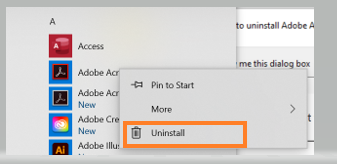
1.) Start Menu (Windows) search for Adobe Acrobat 2017.
2.) Right click on Adobe Acrobat 2017 and click on Uninstall.
[](https://bookstack.kb.ucla.edu/uploads/images/gallery/2020-12/adobe-cc-1.png)
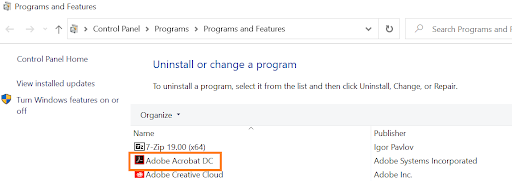
3.) You will be automatically prompted to Programs and Features. You will then right click on Adobe Acrobat.
2017 and click uninstall. This example shows Adobe Acrobat DC.
[](https://bookstack.kb.ucla.edu/uploads/images/gallery/2020-12/adobe-cc-2.png)
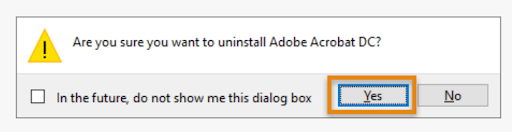
4.) The following dialogue box will appear. Click on “Yes” and it will restart your computer.
[](https://bookstack.kb.ucla.edu/uploads/images/gallery/2020-12/adobe-cc-3.png)
Once Adobe Acrobat 2017 has been uninstalled and your computer rebooted. Please scroll down to the instructions to access Adobe Creative Cloud.
If you are a Mac OS X user:
**OS X**: to uninstall Adobe Acrobat 2017:
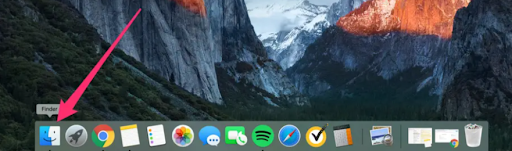
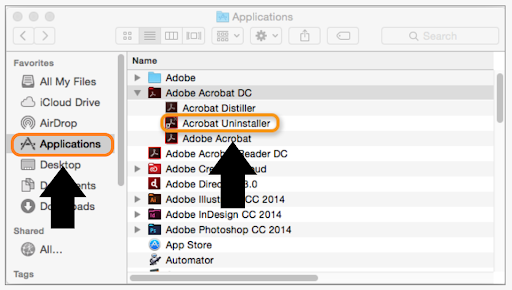
1.) On the Applications folder in Finder (OS X) search for Acrobat Uninstaller under Adobe
Acrobat 2017.
[](https://bookstack.kb.ucla.edu/uploads/images/gallery/2020-12/adobe-cc-4.png)
[](https://bookstack.kb.ucla.edu/uploads/images/gallery/2020-12/adobe-cc-5.png)
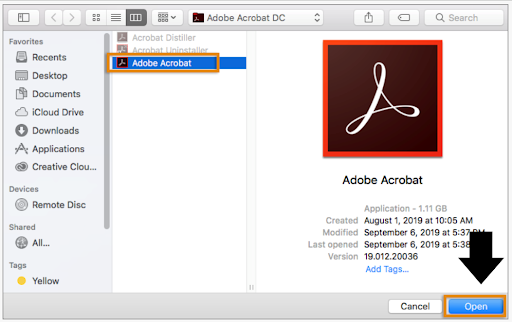
2.) Select Adobe Acrobat and click “Open.”
[](https://bookstack.kb.ucla.edu/uploads/images/gallery/2020-12/adobe-cc-6.png)
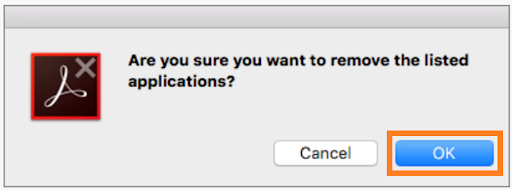
3.) Click on “Ok” to remove Adobe Acrobat 2017.
[](https://bookstack.kb.ucla.edu/uploads/images/gallery/2020-12/adobe-cc-7.png)
## Adobe Creative Cloud Installation Instructions:
[https://www.it.ucla.edu/support-training/tutorials/adobe-creative-cloud-installation-instructions](https://www.it.ucla.edu/support-training/tutorials/adobe-creative-cloud-installation-instructions)
After you finish step 12 in UCLA IT Services’ linked Adobe Creative Cloud Installation Instructions above. Follow the instructions below to install the application onto your computer.
1.) On a Windows computer go to “Start” on the taskbar and search for Adobe Creative
Cloud. On a Mac computer go to the Mac Applications folder and search for Adobe
Creative Cloud.
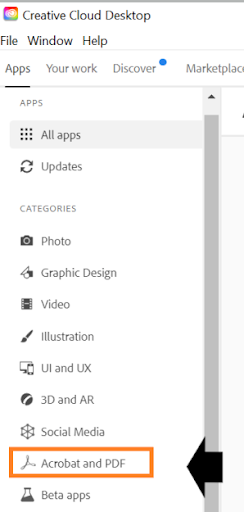
2.) Open the application and you should be prompted to all the applications.
[](https://bookstack.kb.ucla.edu/uploads/images/gallery/2020-12/adobe-cc-8.png)
3.) Once you locate Adobe Acrobat DC, click on “Install” and it will begin to install. When the installation is complete under Installed. On Acrobat DC, click open and the app will open.
[](https://bookstack.kb.ucla.edu/uploads/images/gallery/2020-12/adobe-cc-9.png)
Adobe Acrobat installation is complete: Note you can also find Adobe Acrobat through the Start Menu (Windows) or Finder (OS X).
References:
[https://helpx.adobe.com/download-install/kb/uninstall-reinstall-acrobat.html](https://helpx.adobe.com/download-install/kb/uninstall-reinstall-acrobat.html)
List of Previous Acrobat Versions:
[https://en.wikipedia.org/wiki/Adobe\_Acrobat\_version\_history#Acrobat](https://en.wikipedia.org/wiki/Adobe_Acrobat_version_history#Acrobat)