# How to Create a Portlet in JIRA
1\. Sign on to JIRA. ([https://jira.ats.ucla.edu/](https://jira.ats.ucla.edu/))
2\. Turn configure on.
[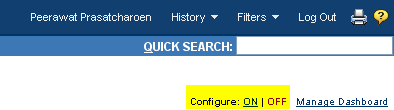](https://bookstack.kb.ucla.edu/uploads/images/gallery/2020-12/portlet-configure.png)
3\. Click on Add a Portlet.
[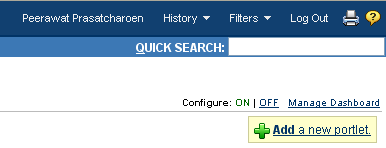](https://bookstack.kb.ucla.edu/uploads/images/gallery/2020-12/portlet-add.png)
4\. Find Show Saved Filter click on it.
[](https://bookstack.kb.ucla.edu/uploads/images/gallery/2020-12/portlet-saved-filter.png)
5\. Click on Add.
6\. Click select filter.
[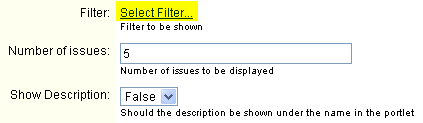](https://bookstack.kb.ucla.edu/uploads/images/gallery/2020-12/portlet-select-filter.png)
7\. Pick the filter you want to add to your home page (ie: On PROD, On STAGE, On TEST, etc)
8\. Click on Save.
9\. After saving, turn configure off.
[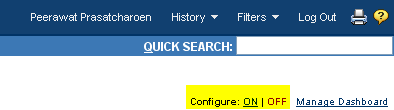](https://bookstack.kb.ucla.edu/uploads/images/gallery/2020-12/AuHportlet-configure.png)