# Subscribing to JIRA's Issues and Comments using Microsoft Outlook's RSS Feeds
1\. Sign on to JIRA
2\. Click on the portlet from which you want updates.
3\. Found under Current View is RSS ( Issues | Comments ). Click on either “Issues” or “Comments” (you’ll want an RSS feed for both).
[](https://bookstack.kb.ucla.edu/uploads/images/gallery/2020-12/rss-comments-and-issues.png)
4\. In the new window/tab that will open, locate the URL address bar and type after the address “&os\_username=&os\_password=”. Cut/copy the new URL address.
Example: Jane Bruin has an account on JIRA, janebruin, with password CCLE. Her results would be the link’s address, followed by &os\_username=janebruin&os\_password=CCLE
5\. Access Microsoft Outlook.
6\. Under the Mail section is RSS Feeds. Right-click on it.
[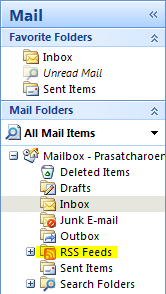](https://bookstack.kb.ucla.edu/uploads/images/gallery/2020-12/rss-in-microsoft-outlook.png)
7\. Select “Add a New RSS Feed.”
8\. When prompted for a location, paste what you copied in step 4.