How to Change your Windows Domain Password on Citrix
This document provides a step-by-step set of instructions on how to change your domain password online using the Citrix webpage. This password is used to log into departmental Windows computers and resources.
Your new password must meet password complexity standards as defined by your department.
Using the web browser of your choice, navigate to the EA Citrix homepage at https://access.support.ucla.edu. You will be presented with a screen similar to the one shown below.
Do NOT click Install, click on “Skip to Log on”

After selecting to “Skip to Log on” you will be prompted to enter:
- Your user name
- Your password (please note, this is the current password for your account)
- Then click Log On

Once you are logged on, click on the “Settings” icon at the top of the page.

Click the “Change Password” icon near the middle of the page.

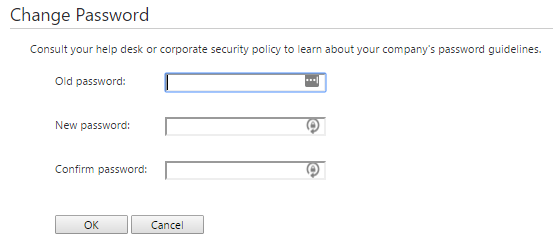
After selecting “Change Password” you will be prompted to enter:
- The “Old password” for your account (please note, the “Old password” is the current password for your account)
- The “New password” you want to set for your account (following IT’s standards for “Choosing a Good Password”)
- Retype your “New password” in the “Confirm password” field
- Then click “OK” to apply the changes you have just made to your account.
If your password change was successful, you will see the following message:

Common Errors:
- If you do not enter your Old (current) Password correctly, you will receive the following error (clicking the OK button will take you back to the Change Password screen).

- In order for the password change to be successful, you must ensure that what you are typing in the “New password” field matches your entry in the “Confirm password” field. If these entries do not match, you will see the following error (clicking OK will take you back to the Change Password screen).

- Your new password MUST meet password standards. If your password does not meet minimum security standards, you will see the error below and your new password will not be accepted (clicking OK will direct you back to the Change Password screen to enter a new password).
