# TN3270 - Mac Connection to OASIS (Mochasoft)
CONFIGURING MOCHA TN3270 / OASIS CONNECTION FOR MAC
*(Shoutout to Ray Yamauchi for assistance!)*
**Download PDF INSTRUCTIONS HERE:** [https://ucla.box.com/s/33d5h71pd7p70yzwl7rgmdjedavrz2fy](https://ucla.box.com/s/33d5h71pd7p70yzwl7rgmdjedavrz2fy) (UCLA Logon Required)
**INTRODUCTION**
This document outlines configuration of OASIS within the Mocha TN3270 terminal emulator software on a Mac.
REQUISITES (Download both files) [https://ucla.box.com/s/0nopn5m2javjskh2clw4c9fxqiiqprhr](https://ucla.box.com/s/0nopn5m2javjskh2clw4c9fxqiiqprhr) (UCLA Logon Required)
• Mocha TN3270 application installer file (Filename: **tn3270.dmg**)
• OASIS configuration .TXT file (Filename: **MAC-OASISconfig.txt**)
**INSTALLATION**
**1.** Download the OASIS configuration .TXT file and the TN3270.dmg files listed above (UCLA Logon Required)
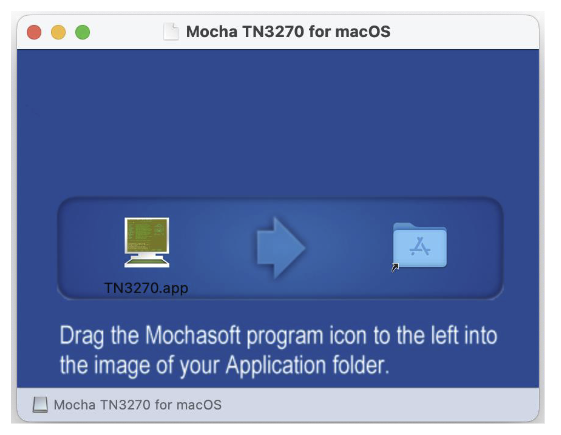
**2.** Double-click downloaded .DMG installer file; the following window will open. Drag TN3270.app icon to “Applications” folder icon.
[](https://bookstack.kb.ucla.edu/uploads/images/gallery/2024-08/image-1724810512285.png)
**3.** NOTE: If working remotely, please connect to the UCLA VPN before proceeding to allow OASIS access off-campus connections.
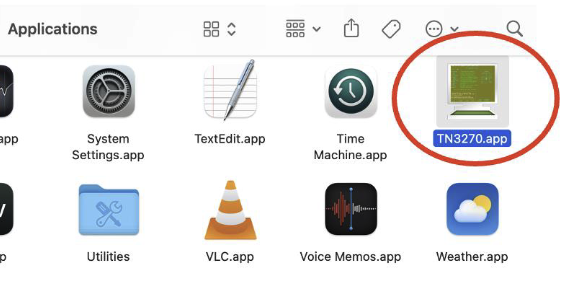
**4.** Navigate to the “Applications” folder and double click on the “TN3270” app icon.
[](https://bookstack.kb.ucla.edu/uploads/images/gallery/2024-08/image-1724810540572.png)
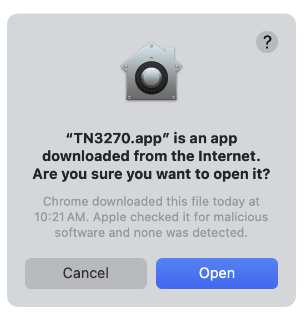
**5**. If the following prompt appears, click “Open”.
[](https://bookstack.kb.ucla.edu/uploads/images/gallery/2024-08/image-1724810557118.png)
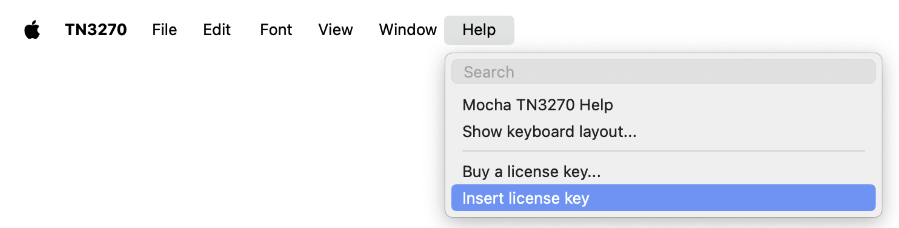
**6**. From the TN3270 app that has opened go to the TN3270 APP MENU, click Help -> Insert license key.
[](https://bookstack.kb.ucla.edu/uploads/images/gallery/2024-08/image-1724810581489.png)
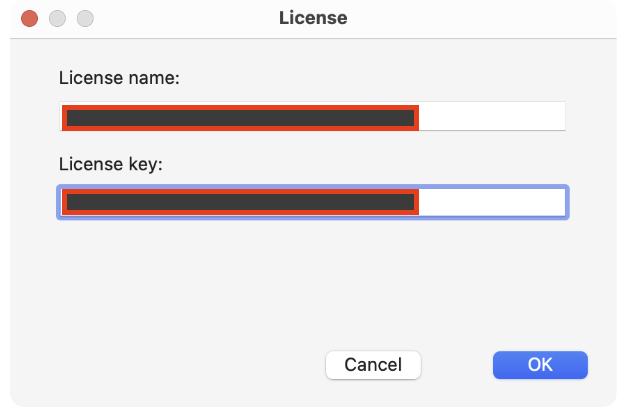
**7.** A window to activate the app license will appear. Input (copy and paste) the information listed below in the corresponding fields then click “OK”.
a. License name and License Key: [https://ucla.box.com/s/mt7oiyfax811vob3lfz5vi7lnx5bwfnt](https://ucla.box.com/s/mt7oiyfax811vob3lfz5vi7lnx5bwfnt) (UCLA Logon Required)
[](https://bookstack.kb.ucla.edu/uploads/images/gallery/2024-08/image-1724810648332.png)
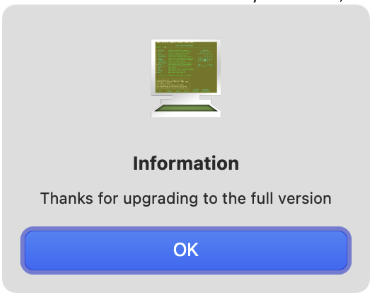
**8.** When the license is successfully activated, the following prompt will appear. Click “OK”.
[](https://bookstack.kb.ucla.edu/uploads/images/gallery/2024-08/image-1724810689539.png)
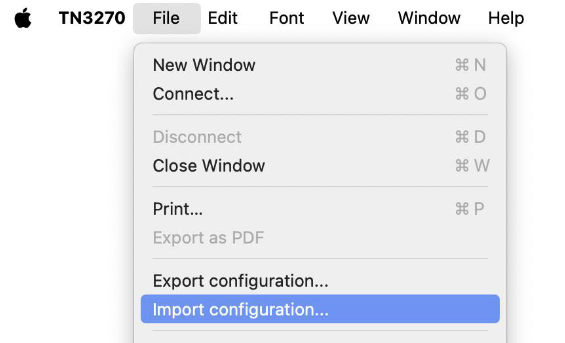
**9.** To fully configure to connect you will now IMPORT the OASIS config .TXT that was downloaded from step 1. From the TN3270 APP MENU click File -> Import Configuration.
[](https://bookstack.kb.ucla.edu/uploads/images/gallery/2024-08/image-1724810717440.png)
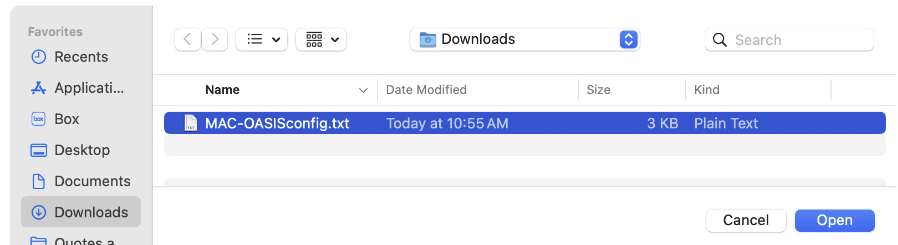
**10.** Locate the downloaded “MAC-OASISconfig.txt” file and then click “Open”
[](https://bookstack.kb.ucla.edu/uploads/images/gallery/2024-08/image-1724810742338.png)
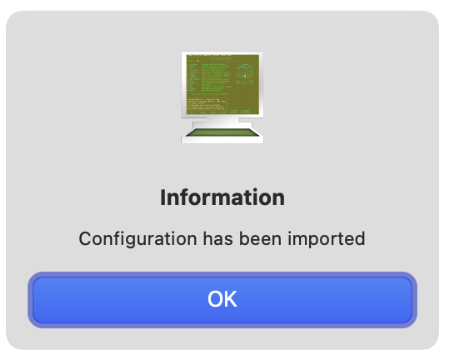
**11.** Once the .TXT files has been imported, the following prompt will appear. Click “OK”>
[](https://bookstack.kb.ucla.edu/uploads/images/gallery/2024-08/image-1724810759482.png)
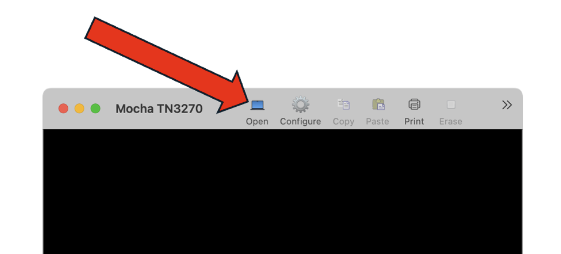
**12.** At the main TN3270 APP screen, click “Open”.
[](https://bookstack.kb.ucla.edu/uploads/images/gallery/2024-08/image-1724810775402.png)
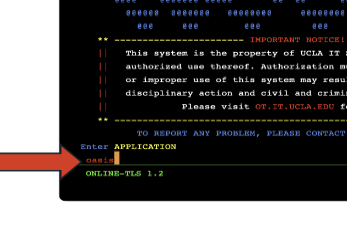
**13.** OASIS screen will appear. Type oasis then press Return.
[](https://bookstack.kb.ucla.edu/uploads/images/gallery/2024-08/image-1724810789718.png)
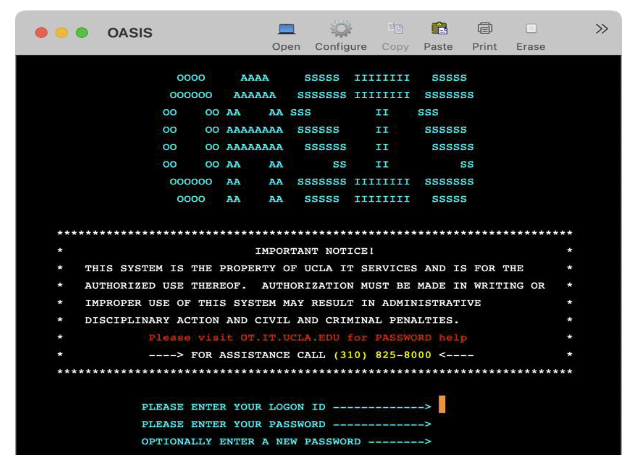
**14.** OASIS login screen will appear.
[](https://bookstack.kb.ucla.edu/uploads/images/gallery/2024-08/image-1724810806816.png)
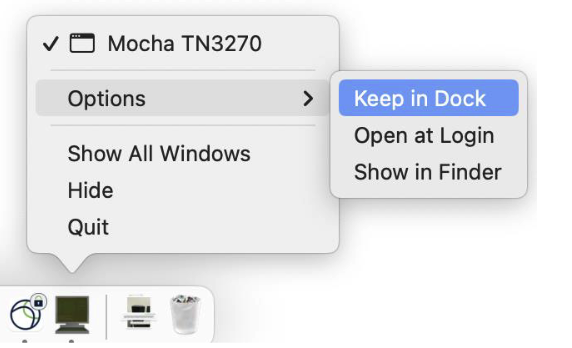
**15**. For ease of access, locate the TN3270 icon in the dock, right-click on it, then select Options -> Keep in Dock.
[](https://bookstack.kb.ucla.edu/uploads/images/gallery/2024-08/image-1724810832182.png)