# UCLA ArcGIS Access
# How to Access ArcGIS Pro @ UCLA
**Eligible Users**
- **Current UCLA Students:** Full access to ArcGIS Online, ArcGIS Pro, and over 50 extensions and apps.
- **Faculty & Staff:** Full access for teaching, research, and administrative tasks.
### **UCLA ArcGIS Pro: Access and Login Information**
ArcGIS Pro is available to the UCLA community through the following options:
1. **Download and install on a Windows PC:** [UCLA Library ArcGIS Pro Guide](https://guides.library.ucla.edu/geospatial/software-pro)
2. **Access remotely at UCLA:** [UCLA CLICC Virtual Desktop](https://uclalibrary.atlassian.net/wiki/spaces/LITKB/pages/39138216/Access+a+CLICC+Virtual+Desktop)
#### **Logging in to ArcGIS Pro**
For easier login, we recommend signing in to [UCLA ArcGIS Online](https://gisucla.maps.arcgis.com/home/index.html) first using your UCLA credentials. Once signed in, open the ArcGIS application. The application should automatically recognize your ArcGIS Online account and sign you in. If not, follow the additional login instructions provided below.
#### **Additional Access Options**
*Some departments may also offer ArcGIS Pro through computer labs or remote desktop environments. Check with your department for availability. Regardless of how you access ArcGIS Pro, the login process is the same for UCLA users.*
#### **How To log into ArcGIS Pro Application:**
Double click on the ArcGIS Pro Icon (on a virtual system, or if you installed it on your own PC)
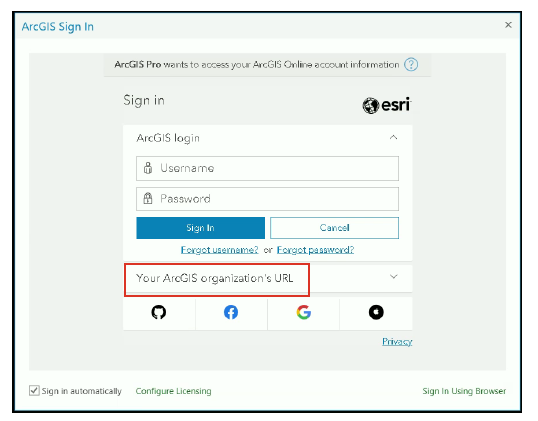
When the ArcGIS sign in screen appears, click on the bottom portion "Your ArcGIS organiztion's URL"
[](https://bookstack.kb.ucla.edu/uploads/images/gallery/2026-10/image.png)
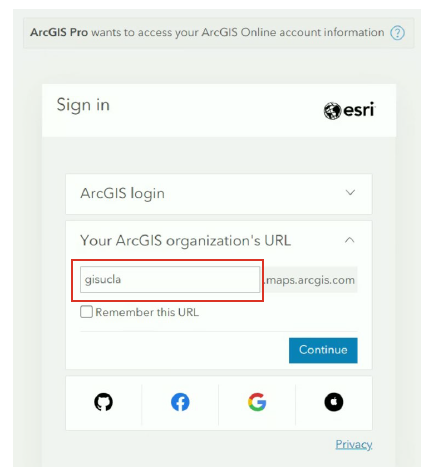
Type GISUCLA in the box and click on "remember this url". and click continue.
[](https://bookstack.kb.ucla.edu/uploads/images/gallery/2026-10/wtwimage.png)
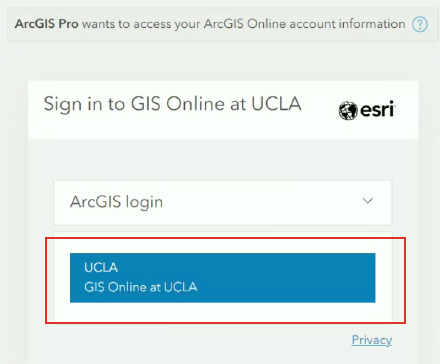
Now click on the UCLA SSO GIS Online at UCLA Blue box
[](https://bookstack.kb.ucla.edu/uploads/images/gallery/2026-10/lwXimage.png)
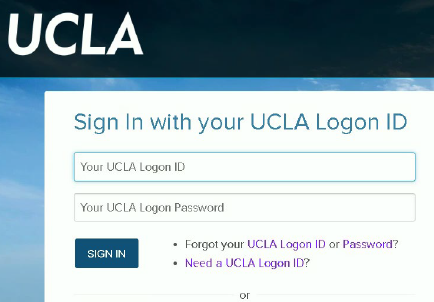
Sign in with your UCLA SSO credentials
[](https://bookstack.kb.ucla.edu/uploads/images/gallery/2026-10/F5limage.png)
Your ArcGIS Application will now start.
# Download ArcGIS Pro
## ArcPro for PC
1. Log in to [https://gisucla.maps.arcgis.com/home/index.html](https://gisucla.maps.arcgis.com/home/index.html)
2. Click on UCLA SSO (GIS Online) and login
3. Click your username (upper right)
4. Click “My Settings”
5. Click Licenses
6. Scroll down to ArcPro and click download
7. Click the exe file to install ArcPro
8. After Installation, you can log in your ArcGIS Online at UCLA first and then open ArcGIS Pro. ArcGIS Pro will detect your account in ArcGIS Online and synchronize the account and log in. Then you can use ArcGIS Pro.
9. If it doesnt auto detect, you can manually login: [https://bookstack.kb.ucla.edu/books/ucla-arcgis-access/page/how-to-access-arcgis-pro-at-ucla/edit](https://bookstack.kb.ucla.edu/books/ucla-arcgis-access/page/how-to-access-arcgis-pro-at-ucla/edit) (see how to login).