
Importing Calendar Items into Outlook 2016
This document provides a step-by-step set of instructions on how to import calendar items into Outlook 2016 for Microsoft Windows.
Right click the following link for for UCLA Holidays 2020 or this link for for UCLA Academic Calendar 20202021 and choose to save the attachment. You can choose a location on your computer, or accept the default, which will be Downloads.
- Open Outlook, from the Menu Bar click
onon File,choosechoose Open Outlook Data File.
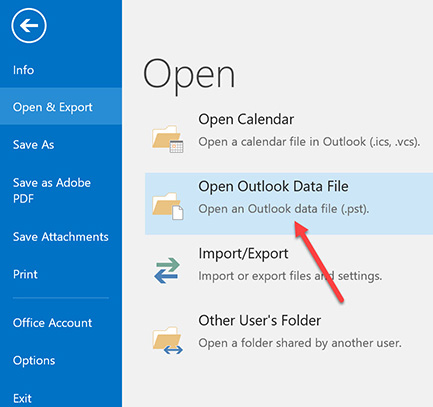
- In the Import and Export Wizard, choose “Import an iCalendar (.ics) or vCalendar file (.vcs)” and
clickclick Next.

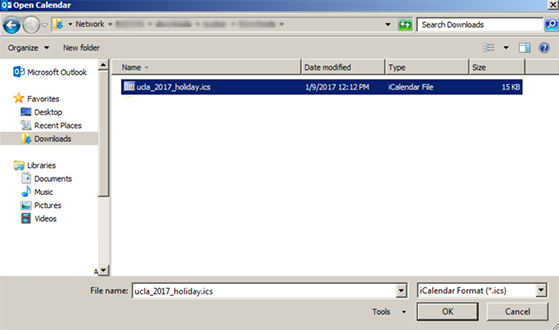
- In the browse dialog box, choose the folder you saved the file to, by default it is the Downloads folder, select the file and
clickclick OK.
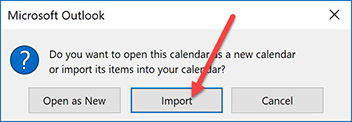
ClickClick Import
The calendar items will now appear in your Outlook calendar.
NOTE: Do not perform this procedure on the same import file more than once. Doing so will result in duplicate entries in your calendar. If you add United States Holidays provided by Outlook to your calendar it may also result in some duplicate holidays in your calendar.